Real-time keystroke display
Show shortcuts immediately as they are pressed so viewers can connect an action with its keyboard command.
Display keyboard shortcuts and selected keystrokes in real time for tutorials, presentations, live coding, collaboration and screen recordings on macOS.
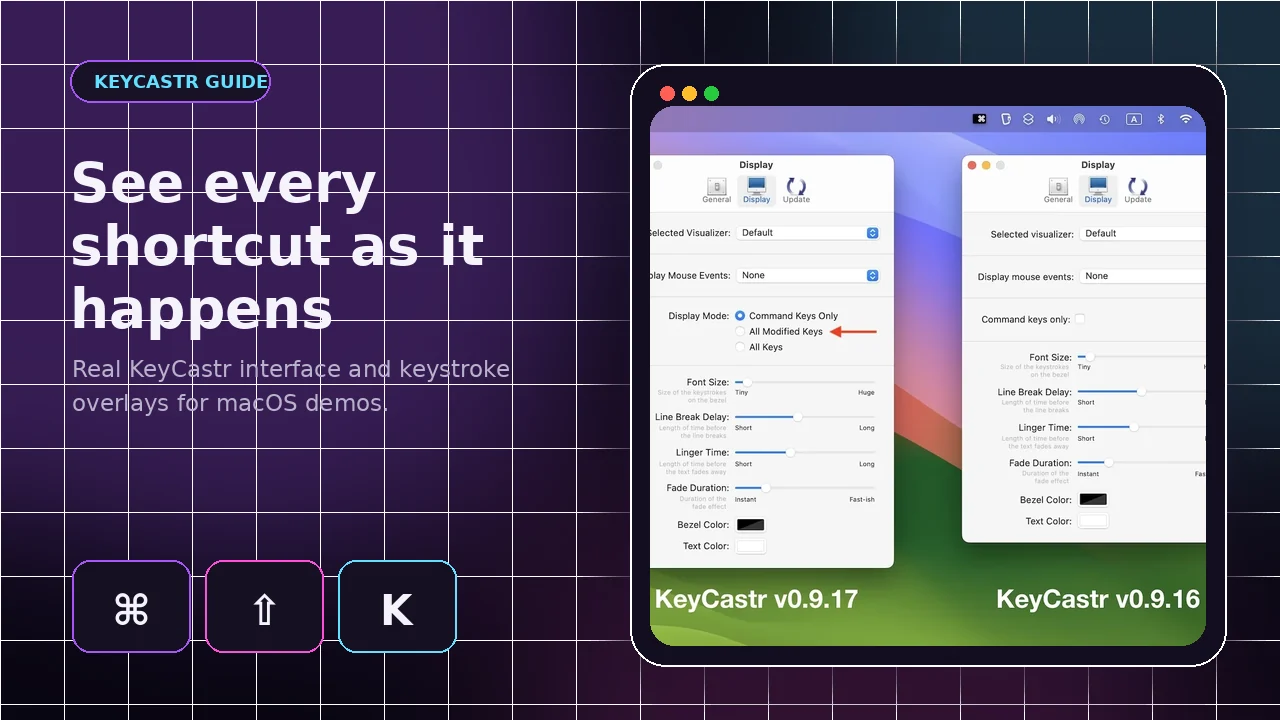
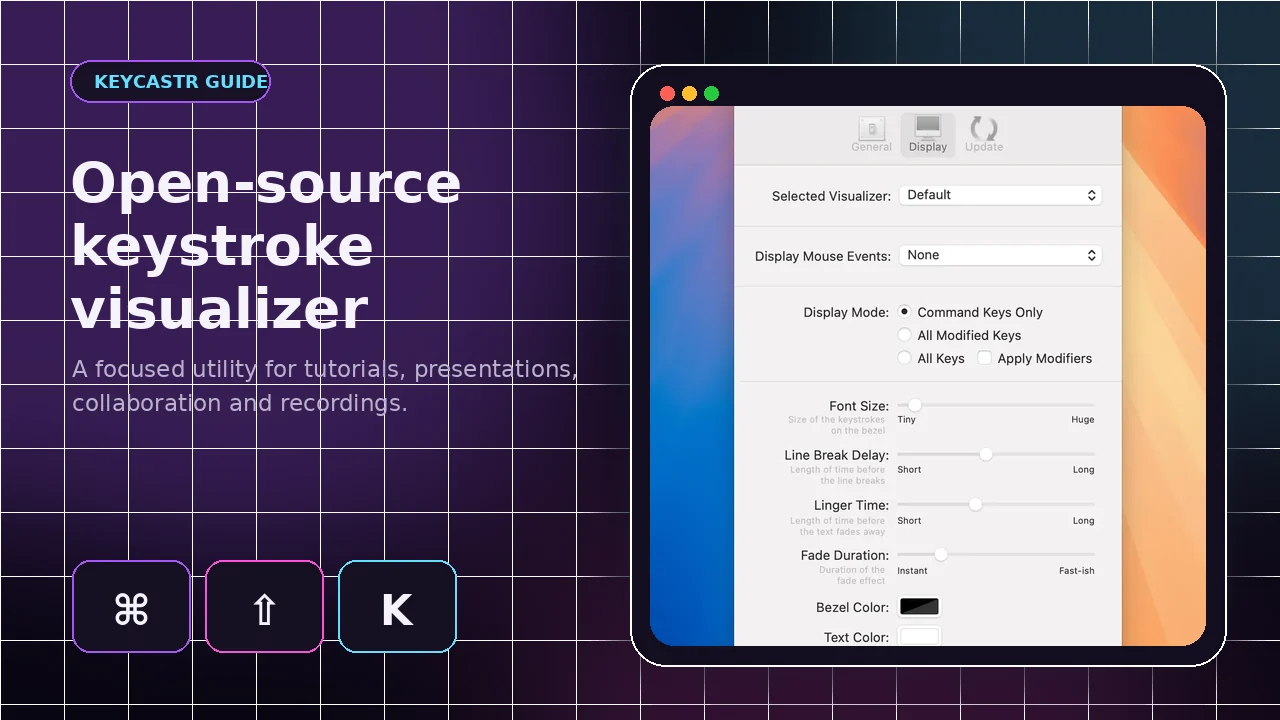
KeyCastr is an open-source keystroke visualizer for macOS. It receives keyboard and optional mouse events, then presents selected input in a movable on-screen overlay. The result helps an audience follow software shortcuts without guessing what happened off camera.
It is useful for recorded tutorials, classroom demonstrations, live coding, product walkthroughs and collaborative sessions. Display modes let you show only command combinations, all modified keys or every key, depending on how much detail the audience needs.
KeyCastr keeps the workflow simple while offering enough control for different recording styles, screen sizes and audience needs.
Show shortcuts immediately as they are pressed so viewers can connect an action with its keyboard command.
Choose command keys only, all modified keys or all keystrokes with optional modifiers.
Add mouse click information when keyboard input alone does not explain the demonstrated action.
Adjust font size, bezel and text colors, line-break delay, linger time and fade duration.
Drag the visible keystroke display to a clear part of the desktop.
Switch visualizers to match the presentation or diagnose display-position issues.
Inspect the Objective-C source, build custom visualizers and contribute under the BSD license.
KeyCastr relies on macOS permission controls, then filters and formats incoming events according to your chosen display settings.
Start the app from Applications or after installing it with Homebrew.
Enable Input Monitoring, or Accessibility on older macOS versions.
Select which keyboard and mouse events should appear.
Move and style the overlay, then record or share the screen.
Searches for KeyCastr Windows or KeyCastr Linux often lead to confusing results. The official KeyCastr project is a macOS application.
KeyCastr uses macOS input-event and privacy frameworks. Recent project releases preserve support for older systems while newer versions use the Input Monitoring permission introduced in macOS 10.15.
A visible shortcut overlay removes a common gap in screen-based teaching and demonstrations.
Show the exact shortcut behind each editing, navigation or productivity action.
Help an audience follow keyboard-driven workflows in real time.
Reveal editor, terminal and debugging shortcuts without interrupting the explanation.
Capture a persistent visual reference for commands used during a walkthrough.
Make shortcut-heavy workflows easier to understand during screen sharing.
Give learners a clear view of key combinations from anywhere in the room.
The app cannot display system-wide input until macOS permission is enabled for the exact copy of KeyCastr you launch.
Use a verified release or the Homebrew cask. The source ZIP supplied on this site is for project files and development.
Open the app and respond to the macOS permission prompt.
Open Privacy & Security, select Input Monitoring and enable KeyCastr. Restart when prompted.
Choose a visualizer, display mode, size, colors, timing and mouse-event behavior.
Press a shortcut, then drag the visible keystroke text to a clear screen location.
# Install KeyCastr with Homebrew
brew install --cask keycastr

# Launch from Applications, then enable:
System Settings
→ Privacy & Security
→ Input Monitoring
→ KeyCastr
The supplied link downloads the current main branch source ZIP from the KeyCastr GitHub repository. It is intended for source review, development or manual building and is not the same as a ready-to-run application release.
Input Monitoring is a powerful macOS permission. Grant it only to software you trust, review the permission list regularly and stop or hide the overlay before entering sensitive information. Secure password fields should not be displayed, but cautious permission management remains important.
The tool is excellent for its intended macOS workflow, but it is not a universal keystroke solution for every platform or capture setup.
Release information is based on the latest official repository data available when this website was prepared.
| Latest release | v0.10.5 |
|---|---|
| Release date | November 24, 2025 |
| Release focus | Improved handling when the macOS input source changes |
| Programming language | Objective-C |
| License | BSD 3-Clause |
| Installation option | Homebrew cask or trusted application release |
Permission state and overlay position cause most “not working” reports. Check both before changing unrelated settings.
Quit KeyCastr, remove and re-enable it under Input Monitoring, relaunch it and restart the app when macOS asks.
Open Display preferences and change from Command Keys Only to All Modified Keys or All Keys.
Switch to the Svelte visualizer to test whether events are received, then drag the visible display back onto the active screen.
Remove the old KeyCastr entry and add the exact app copy you currently launch from Applications.
Installation, permission, compatibility and display guides cover the questions people search most often.
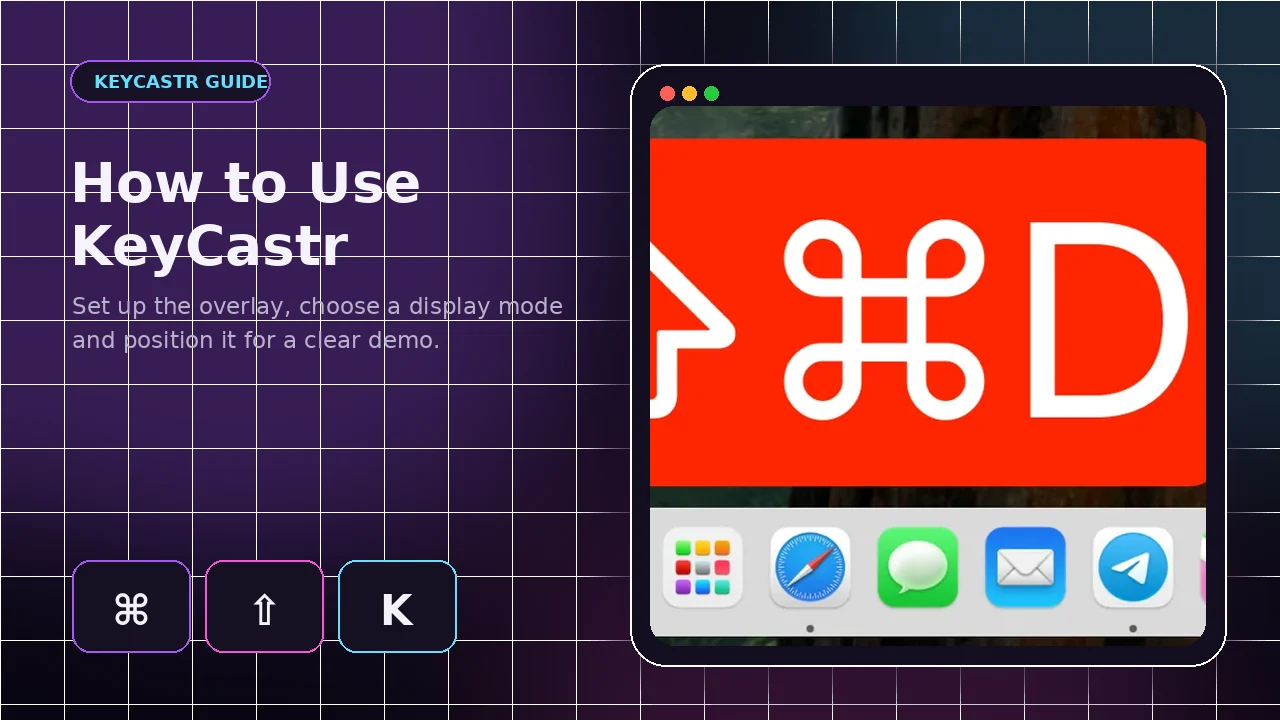
Configure the visualizer, select a display mode and position the overlay.
Read the guide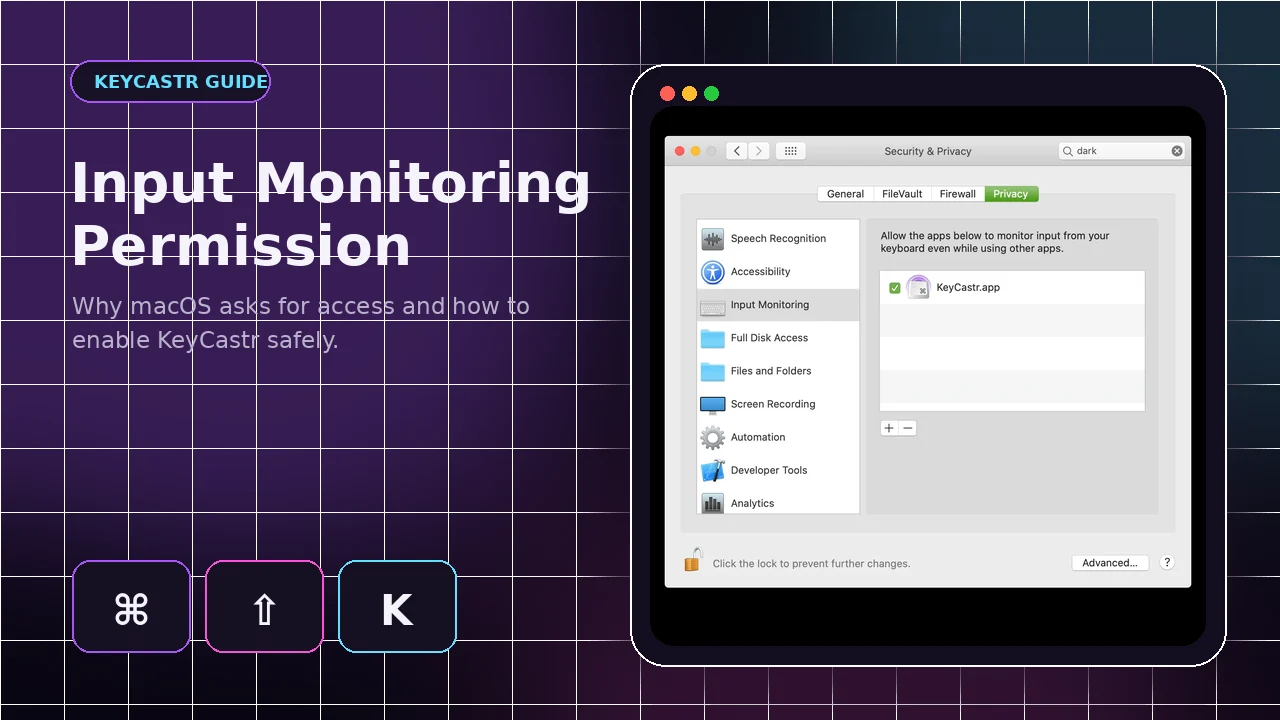
Understand why access is needed and enable it safely on macOS.
Read the guide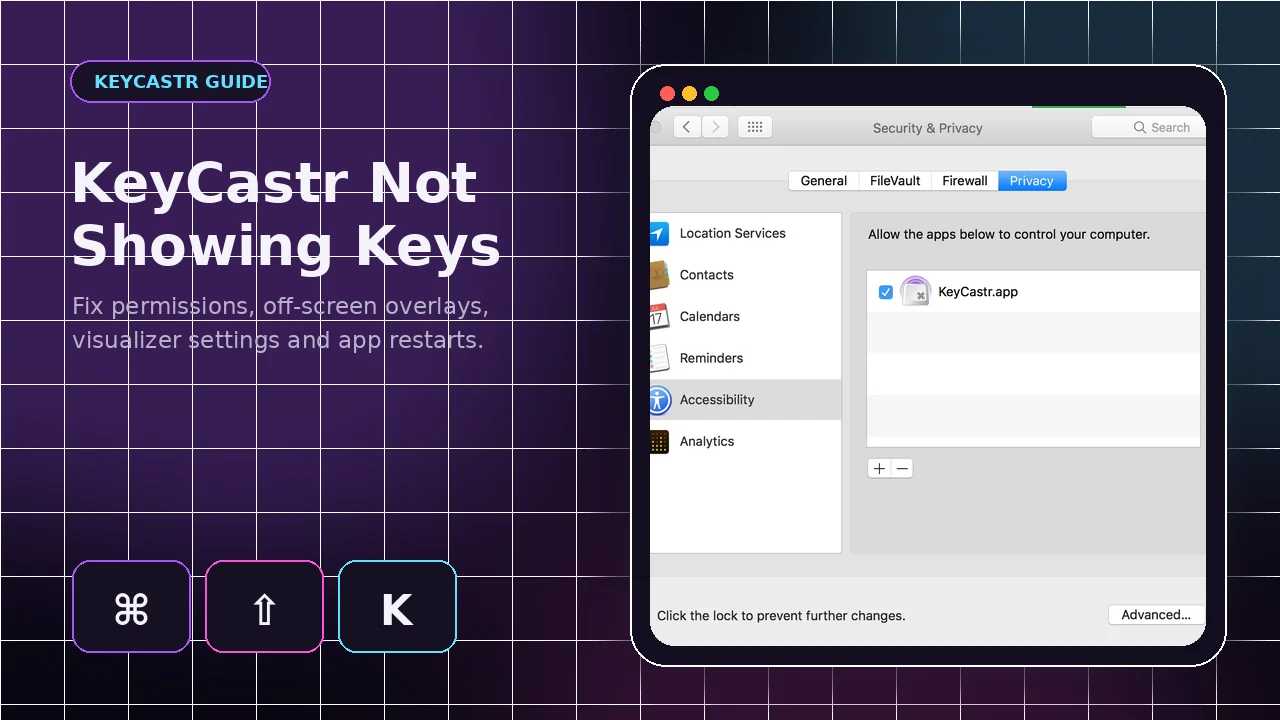
Resolve permission, filtering and off-screen overlay problems.
Read the guideTwenty software-specific answers are divided into two practical categories.
KeyCastr displays keyboard shortcuts and selected keystrokes as an on-screen overlay. It is mainly used for screencasts, live software demonstrations, teaching, remote collaboration and presentations where viewers need to see which keys are being pressed.
Yes. KeyCastr is free and distributed under the BSD 3-Clause license. Its source code is publicly available, which allows developers to inspect the project, build it themselves and contribute improvements.
No native KeyCastr Windows build is provided by the official project. KeyCastr is a macOS application. Windows users should choose a Windows-specific keystroke visualizer instead of downloading unofficial files labeled as KeyCastr for Windows.
KeyCastr is not officially released as a native Linux application. The source is built around macOS frameworks, so Linux users need a platform-specific alternative rather than expecting the macOS project to run directly.
Recent releases are intended for macOS, and project release notes have preserved compatibility as far back as macOS 10.13. Permission steps differ by system version, with Input Monitoring used on macOS 10.15 and later.
Yes. In the display settings you can choose command keys only, all modified keys or all keys. Showing every key can reveal normal typing, so use that mode carefully during recordings, presentations and shared sessions.
Yes. KeyCastr includes an option to show mouse events alongside keyboard input. The exact presentation depends on the selected visualizer and display settings.
The project includes the Default and Svelte visualizers. The Default view presents keystrokes in a compact overlay, while Svelte offers a different presentation that can also help diagnose whether the normal overlay is positioned off-screen.
Yes. KeyCastr display preferences include font size, bezel color, text color, line-break delay, linger time and fade duration. These controls help match the overlay to bright, dark or high-contrast screen recordings.
The default overlay position is near the bottom-left of the display. You can move it by dragging the displayed keystroke text to another location that does not cover important content.
macOS requires explicit permission before an app can receive system-wide keyboard events. KeyCastr needs that access to display shortcuts outside its own window. Enable only the official copy you intend to use and review the permission list regularly.
The most common causes are missing Input Monitoring or Accessibility permission, an overlay positioned off-screen, or a display mode that filters the keys being pressed. Re-enable permission, restart the app and test the Svelte visualizer.
Open Terminal and run brew install --cask keycastr. After installation, launch KeyCastr and approve Input Monitoring when macOS requests it. This command installs the cask managed through Homebrew.
Download a trusted KeyCastr release, extract the archive if necessary, move the app to Applications and launch it. Then open macOS Privacy & Security settings and enable the requested Input Monitoring permission.
On this website, the main Download button uses the supplied GitHub main-branch ZIP URL. That archive contains project source code, not a guaranteed ready-to-run KeyCastr application bundle. Check the package details before downloading.
The project states that secure password fields should not be displayed. Even so, any app with Input Monitoring can receive broad input events. Stop or hide the overlay when handling sensitive information and grant permission only to trusted software.
Press a key combination so the overlay is visible, then click and drag the displayed text to the preferred area of the screen. Keep it inside the visible desktop and away from controls you need to demonstrate.
Yes. KeyCastr runs as a separate overlay on the macOS desktop, so it can appear in many screen captures and live demonstrations. Test your capture source first to confirm the overlay is included and positioned correctly.
Quit KeyCastr, remove it from Input Monitoring or Accessibility in macOS Privacy settings, relaunch the app and add or enable it again. Restart KeyCastr when macOS asks, so the new permission state takes effect.
The KeyCastr GitHub project contains the Objective-C source, project files, assets, license and contribution history. The primary Download section on this site points to the supplied main-branch source archive.