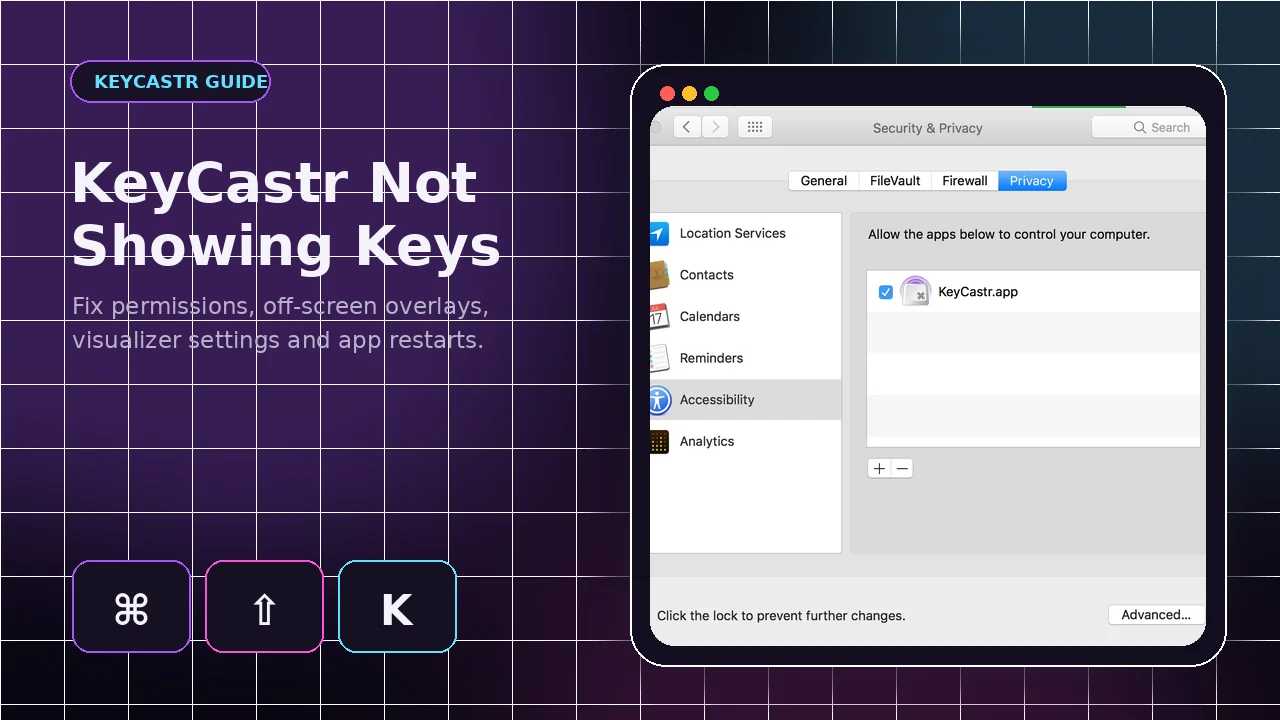
When KeyCastr opens but no overlay appears, the problem is usually one of four things: macOS is not delivering input events, the selected display mode filters the keys being tested, the overlay is outside the visible desktop, or the permission entry points to a different copy of the application.
Confirm the app is receiving events
Test a known shortcut
Press a clear Command combination such as Command+C in a non-sensitive document. Normal letters will not appear when Command Keys Only is selected.
Switch visualizers
Change from Default to Svelte. If Svelte responds, the event path works and the Default overlay may be positioned off-screen or styled invisibly.
Repair Input Monitoring
Check the toggle
Open Privacy & Security and confirm KeyCastr is enabled under Input Monitoring. On older systems, check Accessibility.
Remove stale entries
If more than one copy exists, remove all KeyCastr permission entries, keep one app in Applications, relaunch it and enable the new entry.
Check the display mode
Command Keys Only
This mode intentionally ignores normal typing. Test with a Command shortcut.
All Modified Keys and All Keys
Use All Modified Keys to see Shift, Option, Control and Command combinations. Use All Keys only when normal typing is needed and safe to reveal.
Bring an off-screen overlay back
Display arrangement changes
A previously connected monitor can leave the overlay outside the current desktop bounds.
Drag the active overlay
Use Svelte or another visible state, then drag the display into the active screen. Recheck after changing monitor scaling or arrangement.
Restart and retest cleanly
Quit fully
Close KeyCastr from its menu rather than only closing preferences.
Relaunch after permission updates
Open it again, wait for macOS to apply access and test a shortcut before changing multiple settings at once.